To begin use the search bar to navigate to the Contract Contingent Worker task.
To contract a NEW contingent worker:
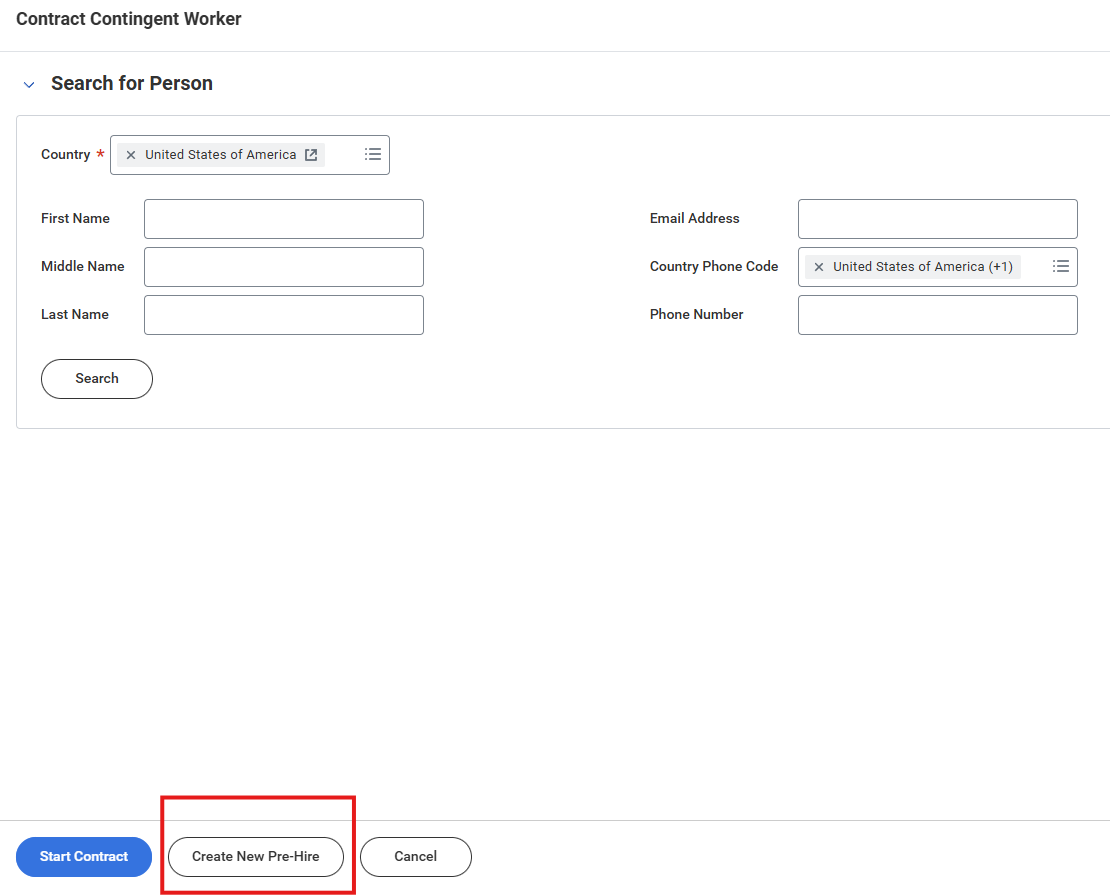
1. Click on Create New Pre-Hire at the bottom of the screen.
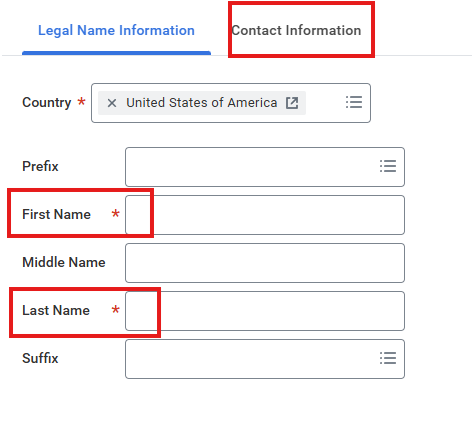
2. Enter the First Name and Last Name as required information, then click on the Contact Information tab.
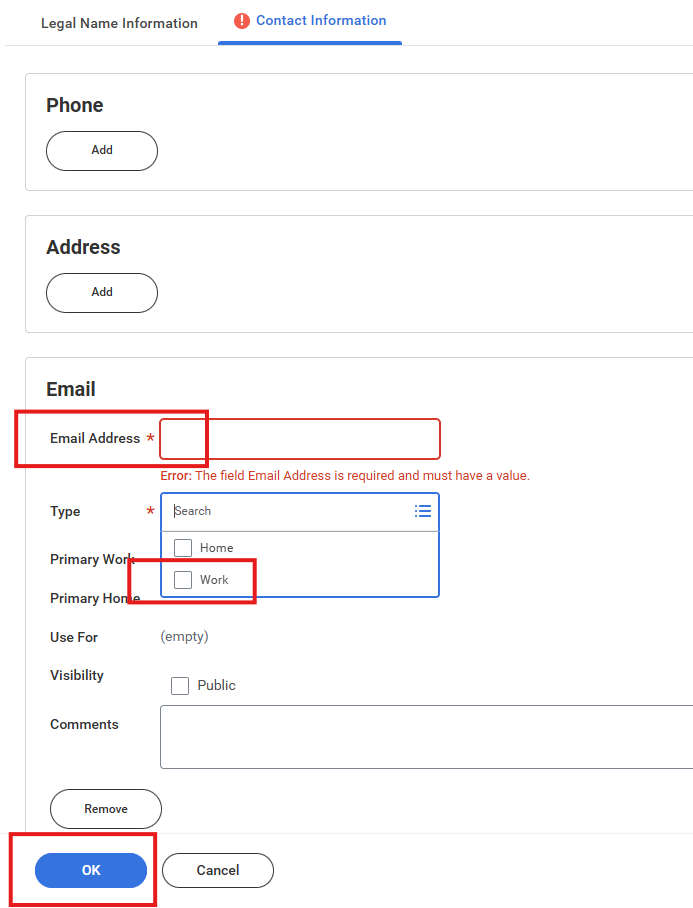
3. On the Contact Information tab, click Add under Email and enter the worker's work email address. Click OK.
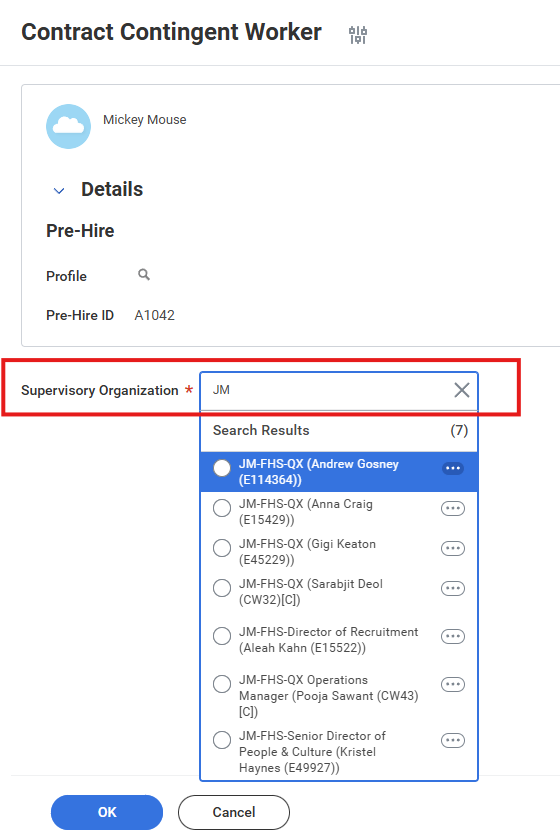
4. On the next screen, select the supervisory organization the worker is being hired into and click OK.
- QX employees MUST be hired into a Job Management supervisory organization. If the system does not default to one of the organizations in the list below, DO NOT proceed. To find the appropriate organization, type the letters JM into the search bar and click enter. Select the correct organization from the list. If you do not see the correct organization, contact the Workday administrator as one may need to be created.
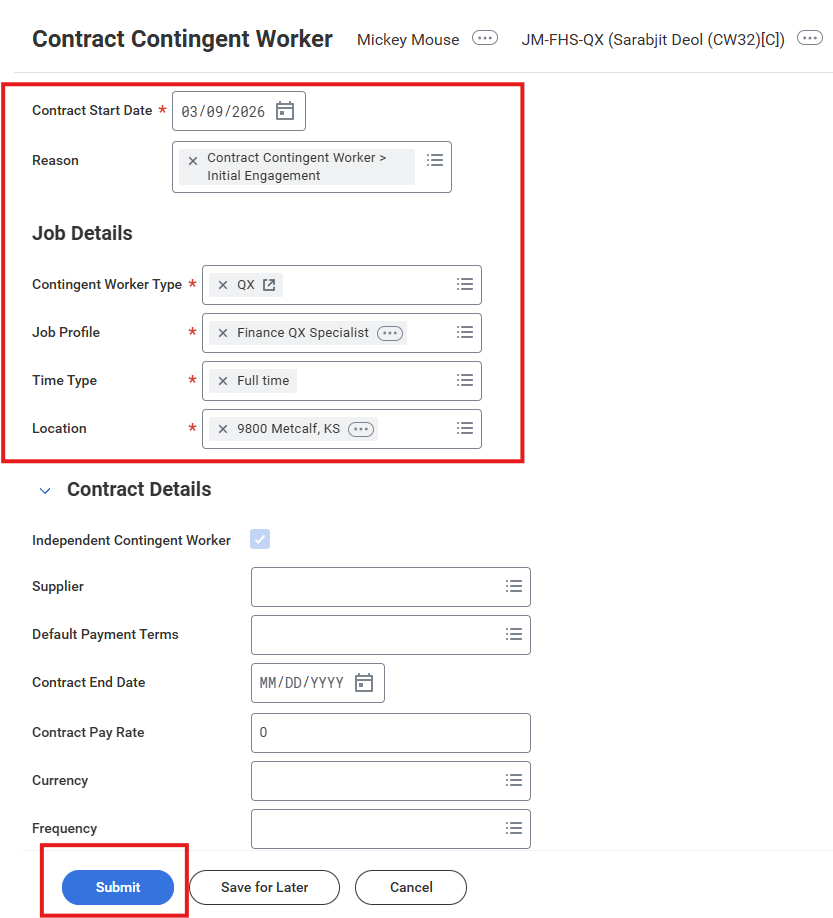
5. Enter all required information in the top section for the contract form, including the reason for the hire. Once complete, click on Submit.
- For new contingent workers select Initial Engagement as the hire Reason.
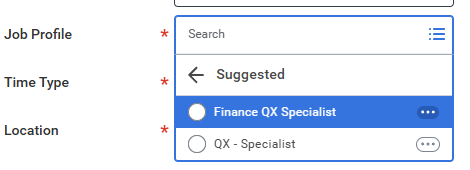
- QX employees MUST have a job profile type of Finance QX Specialist (for Finance assistance) or QX Specialist (for all other departments). For easy selection, click in the field and choose Suggested from the drop down.
- Make the location 9800 Metcalf.
6. The task will now go to HR for approval. Please send an email to Workday@favoritestaffing.com, advising the administrator of the required security permissions for the new hire. Please provide the name of a colleague who the permissions can mirror. Once the process is complete, credentials will be provided.
To contract a RETURNING contingent worker:
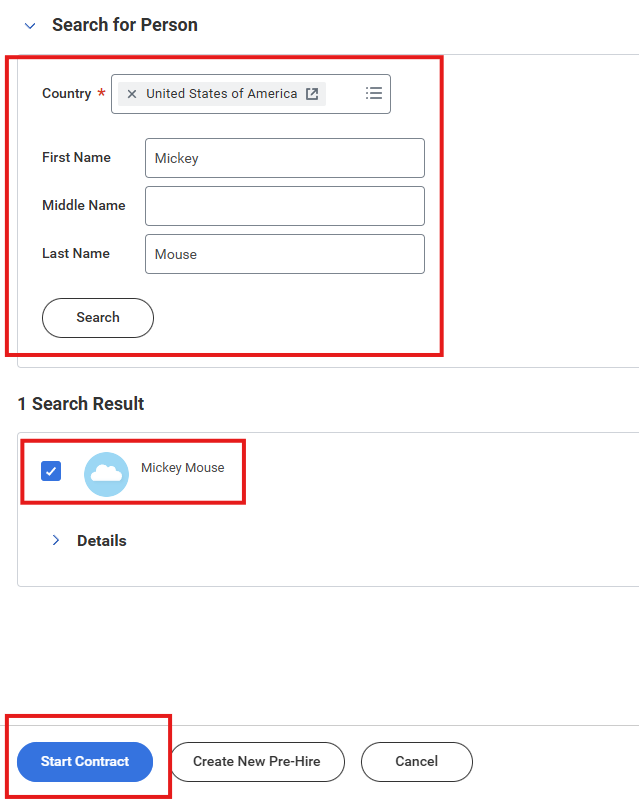
1. Enter the worker's first and last names and click Search. When the worker search displays, click in the check box next to their account and Start Contract.
2. Follow steps 4-6 from above.
- On step 5 - note that the hire Reason is now Re-Engagement because the hire is a returning worker.

To End a contract:
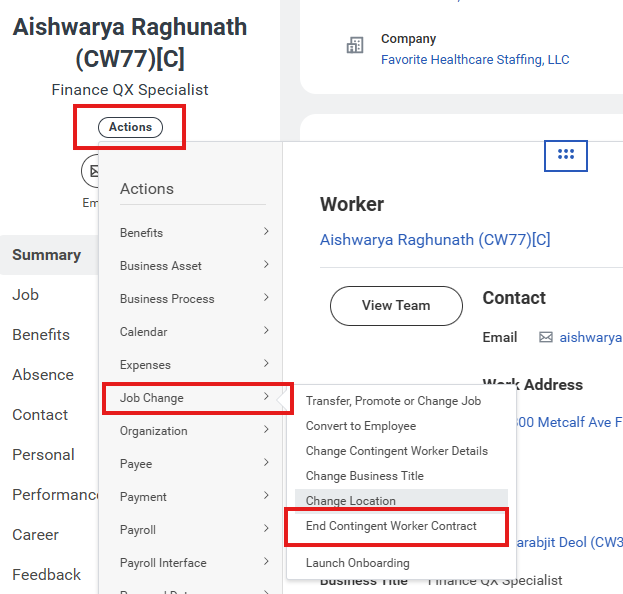
1. Navigate to the worker's profile and click on Actions, to the left of the screen. Choose Job Change from the drop-down menu, then select End Contingent Worker Contract.
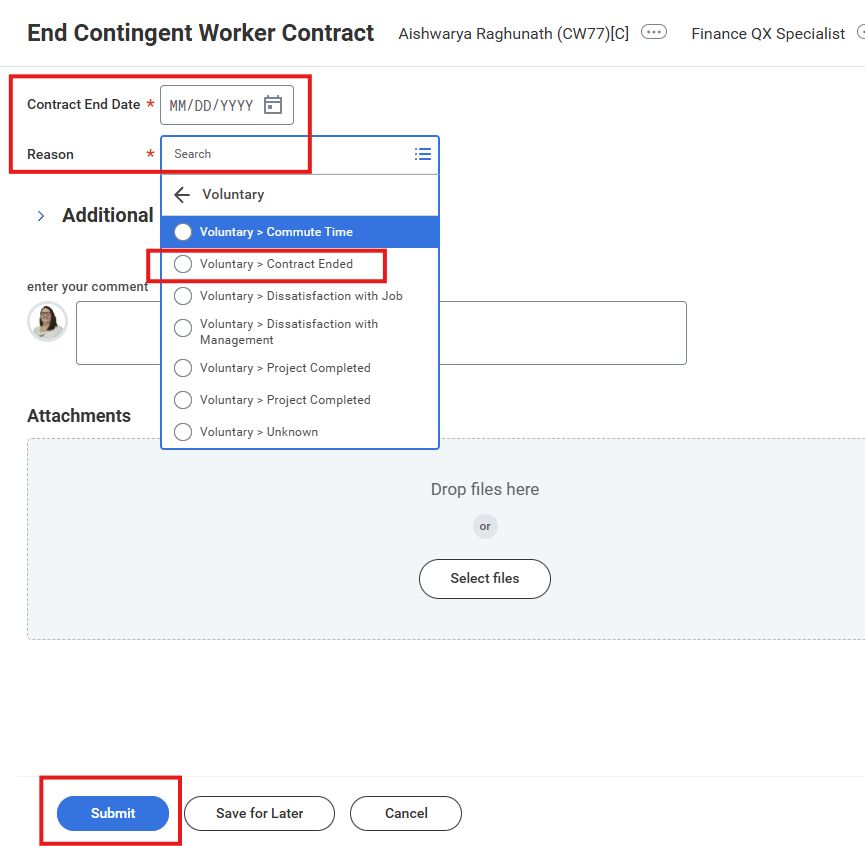
2. Enter the Contract End Date and Reason, then click Submit.
- For QX employees, select Voluntary, then Contract Ended.
Was this article helpful?
That’s Great!
Thank you for your feedback
Sorry! We couldn't be helpful
Thank you for your feedback
Feedback sent
We appreciate your effort and will try to fix the article